Block coding
PiBrain Maker uses Blockly for block coding. Besides the standard blocks there are PiBrain blocks that call the openpibo Python package. The [Python code] button shows the Python code your blocks make.
Note
This page is generated from the IDE toolbox (docs/tools/gen_block_guide.py). Each picture shows the block as it comes out of the toolbox.
Everything runs inside PiBrain. Only the [Collect] category needs the internet, and it is only in the Korean edition.
Categories
Standard Blockly blocks (hover over a block to see what it does)
├── Logic (7)
├── Loops (5)
├── Math (13)
├── Text (15)
├── Lists (12)
├── Colour (4)
├── Variables (appear when you make one)
└── Functions (appear when you make one)

PiBrain blocks
├── Start (1)
├── Audio (3)
├── Collect (4)
├── Device (7)
├── Oled (11)
├── Speech (7)
├── Vision (16)
├── Rec (36)
└── Utils (12)
PiBrain blocks
Start
![When [ Run] clicked](../_images/flag_event.png)
Run the code.
Audio
![Play [Select folder ▾] [Select file ▾] audio with ([80]) volume](../_images/audio_play_dynamic.png)
Select and play audio at set volume.
![Play [Select folder ▾] ([audio]) . [mp3 ▾] audio with ([80]) volume](../_images/audio_play.png)
Enter music file name to play.

Stop the audio currently playing.
Collect
Note
Korean edition only (Korean weather regions and a Korean news feed). The Global edition does not have this category.
![Search Wikipedia for ([Robot])](../_images/wikipedia_search.png)
(Internet!) Search Wikipedia with the given keyword. returns a value
![[Seoul ▾] Search for comprehensive weather information](../_images/weather_forecast.png)
(Internet!) Search for comprehensive weather information in a specific area. returns a value
![[Seoul ▾] Search for [today ▾] weather information [forecast ▾]](../_images/weather_search.png)
(Internet!) Search for weather information in a specific area. returns a value
![[newsflash ▾] Search for [topic ▾] news](../_images/news_search.png)
(Internet!) Retrieve search results with news keywords. returns a value
Device
![Check button [SW1 ▾]](../_images/device_pibrain_button.png)
Check button status. returns a value
![Turn on LEDs ([0]) ([0]) ([0])](../_images/device_pibrain_led_on.png)
Turn on LED
![Turn on LEDs with color variable ([item ▾])](../_images/device_pibrain_led_colour_on.png)
Turn on LED with a color variable.

Turn off LED
![Connect [USB0 ▾]](../_images/device_pibrain_uart_init.png)
Connect USB Device.

Send message to USB Device.

Disconnect USB Device.
Oled
![Set OLED font size to ([30])](../_images/oled_set_font.png)
Set the font size on the OLED display.
![Save ([Hello]) to OLED at ([0]) ([0])](../_images/oled_draw_text.png)
Display text on the OLED screen.
![Save OLED [Select folder ▾] [Select file ▾] image](../_images/oled_draw_image_dynamic.png)
Display dynamically selected image on OLED.
![Save OLED [Select folder ▾] ([sample]) . [jpg ▾] image](../_images/oled_draw_image.png)
Display a specified image on OLED.
![Save OLED ([item ▾]) image data](../_images/oled_draw_data.png)
Display a specified image data on OLED.
![Save [Fill ▾] rectangle to OLED at ([0]) ([0]) , ([0]) ([0])](../_images/oled_draw_rectangle.png)
Draw a rectangle on OLED.
![Save [Fill ▾] ellipse to OLED at ([0]) ([0]) , ([0]) ([0])](../_images/oled_draw_ellipse.png)
Draw an ellipse on OLED.
![Save line to OLED at ([0]) ([0]) , ([0]) ([0])](../_images/oled_draw_line.png)
Draw a line on OLED.

Invert colors on the OLED screen.

Display content on OLED screen.

Clear the OLED screen.
Speech
![Save ([Hello]) with [Male 1 ▾] voice to [Select folder ▾] ([tts]) . [mp3 ▾]](../_images/speech_otts.png)
Make speech on the robot and save it to a file. Korean and English are detected automatically.
![Say ([Hello]) with [Male 1 ▾] voice at ([80]) volume](../_images/speech_otts_play.png)
Make speech on the robot and say it. Korean and English are detected automatically.
![Save ([Hello]) with Espeak voice to [Select folder ▾] ([tts]) . [mp3 ▾]](../_images/speech_etts.png)
Save text as espeak robot voice to a file.
![Say ([Hello]) with Espeak voice at ([80]) volume](../_images/speech_etts_play.png)
Say text with the espeak robot voice.

Start LLM server.
![Respond to ([Hello]) , System prompt (값)](../_images/speech_call_llm.png)
Send text to the LLM server and get a reply. The system prompt sets how piBo should answer. returns a value

Stop the LLM server.
Vision

Capture an image. returns a value
![Load image file [Select folder ▾] [Select file ▾]](../_images/vision_imread_dynamic.png)
Load a specified image file. returns a value
![Load image file [Select folder ▾] ([image]) . [jpg ▾]](../_images/vision_imread.png)
Load an image file. returns a value
![Create ([item ▾]) Color matte](../_images/vision_create_matte.png)
Create a blank image filled with the chosen color. returns a value
![Save image ([item ▾]) to [Select folder ▾] ([image]) . [jpg ▾]](../_images/vision_imwrite.png)
Save as an image file.
![Display image variable ([item ▾]) on IDE](../_images/vision_imshow_to_ide.png)
Display an image variable in IDE.
![Display image variable ([item ▾]) on OLED](../_images/vision_imshow_to_oled.png)
Display an image variable in OLED.
![Display a rectangle with color ([item ▾]) and thickness ([2]) at coordinates ([0]) ([0]) ([0]) ([0]) of image ([item ▾]) .](../_images/vision_rectangle.png)
Draws a rectangle on the image.
![Display a circle with radius ([0]) , color ([item ▾]) , thickness ([2]) at coordinates ([0]) ([0]) of image ([item ▾]) .](../_images/vision_circle.png)
Displays a circle in the image.
![Display a line with color ([item ▾]) and thickness ([2]) at coordinates from ([0]) ([0]) to ([0]) ([0]) of image ([item ▾]) .](../_images/vision_line.png)
Displays a line in the image.
![Display ([Hello]) with size ([30]) and color ([item ▾]) at coordinates ([0]) and ([0]) of image ([item ▾]) .](../_images/vision_text.png)
Display text on the image.
![Convert image ([item ▾]) to [cartoon ▾]](../_images/vision_transfer.png)
Transform image style. returns a value
![image ([item ▾]) resize to width ([100]) height ([100])](../_images/vision_resize.png)
Resize the image. returns a value
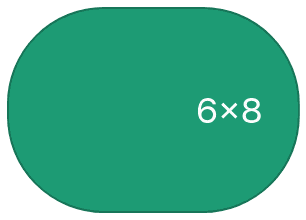
Turns the 6×8 picture you draw by tapping dots into an image (scaled to the camera size). returns a value

Turns the 8×4 picture you draw by tapping dots into an image (scaled to the camera size). returns a value
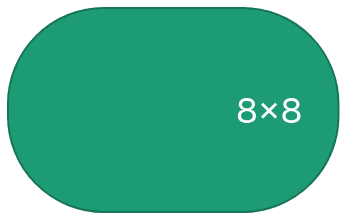
Turns the 8×8 picture you draw by tapping dots into an image (scaled to the camera size). returns a value
Rec
![Find faces in image ([item ▾])](../_images/vision_face_detect.png)
Detect and identify faces in the specified image. returns a value
![Show face ([item ▾]) in the image ([item ▾])](../_images/vision_face_detect_vis.png)
Show faces in the image.
![Analyze face ([item ▾]) of image ([item ▾]) (age, gender, emotion)](../_images/vision_face_analyze.png)
Analyze face in image(age, gender, emotion) returns a value
![Show face analysis ([item ▾]) in the image ([item ▾])](../_images/vision_face_analyze_vis.png)
Show face analysis in the image
![Find face ([item ▾]) landmark in the image ([item ▾])](../_images/vision_face_landmark.png)
Find face landmark in the image returns a value
![Show face landmark ([item ▾]) in the image ([item ▾])](../_images/vision_face_landmark_vis.png)
Show face landmark in the image.

Get the list of names in the face dictionary. returns a value
![Train image ([item ▾]) face ([item ▾]) to name ([pibo])](../_images/vision_facedb_train.png)
Train face from image.
![Delete face name ([pibo]) from face training data](../_images/vision_facedb_delete.png)
Delete a specific face from training faces.
![Recognize who is image ([item ▾]) face ([item ▾])](../_images/vision_facedb_recognize.png)
Recognize who faces are in an image. returns a value
![Save face training data to file [Select folder ▾] ([facedb])](../_images/vision_facedb_save.png)
Save face training data to file.
![Load face training data from file [Select folder ▾] ([facedb])](../_images/vision_facedb_load.png)
Load face training data from file.
![Analyze face direction/distance in the image ([item ▾])](../_images/vision_face_mesh.png)
Analyze face direction/distance in the image. returns a value
![Show face direction/distance ([item ▾]) in the image ([item ▾])](../_images/vision_face_mesh_vis.png)
Show face direction/distance in the image
![Load Object detection model [Select folder ▾] ([yolo11s]) .onnx](../_images/vision_object_load_ext.png)
Load Object detection model
![Find objects in the image ([item ▾])](../_images/vision_object.png)
Find objects in the image. returns a value
![Find objects in the image ([item ▾]) (Raw)](../_images/vision_object_raw.png)
Find objects in the image. (RAW) returns a value
![Show objects ([item ▾]) in the image ([item ▾])](../_images/vision_object_vis.png)
Show objects in the image.
![Find QR in the image ([item ▾])](../_images/vision_qr.png)
Find QR in the image. returns a value
![Find QR in the image ([item ▾]) (RAW)](../_images/vision_qr_raw.png)
Find QR in the image. (RAW) returns a value
![Show QR ([item ▾]) in the image ([item ▾])](../_images/vision_qr_vis.png)
Show QR codes in the image.
![Detect poses in image ([item ▾])](../_images/vision_pose.png)
Identify and analyze human poses in the specified image. returns a value
![Show pose data ([item ▾]) in the image ([item ▾])](../_images/vision_pose_vis.png)
Show pose data in the image.
![Analyze pose results in ([item ▾]) and save to [motion ▾]](../_images/vision_analyze_pose.png)
Evaluate and interpret pose data from the image and save the results. returns a value
![Setting tracker at coordinates ([0]) ([0]) , ([0]) ([0]) of image ([item ▾])](../_images/vision_object_tracker_init.png)
Set a tracker for a specific location in the image.
![Track thing in the image ([item ▾])](../_images/vision_object_track.png)
Track thing in the image. returns a value
![Show tracking result ([item ▾]) in the image ([item ▾])](../_images/vision_object_track_vis.png)
Show tracking result in the image.
![Load Hand gesture model [gesture_recognizer ▾]](../_images/vision_hand_gesture_load.png)
Load Hand gesture model.
![Load Hand gesture model [Select folder ▾] ([gesture_recognizer]) .task](../_images/vision_hand_gesture_load_ext.png)
Load Hand gesture model
![Recognize Hand gesture in the image ([item ▾])](../_images/vision_hand_gesture.png)
Recognize Hand gesture in the image. returns a value
![Show hand gesture ([item ▾]) in the image ([item ▾])](../_images/vision_hand_gesture_vis.png)
Show hand gesture in the image.
![Detect Marker length ([5]) in image ([item ▾])](../_images/vision_marker_detect.png)
Detect Marker in the specified image. returns a value
![Show marker ([item ▾]) in the image ([item ▾])](../_images/vision_marker_detect_vis.png)
Show marker in the image.
![Load classifier model [Select folder ▾] ([model name])](../_images/vision_load_cf.png)
Load a model you taught and saved in the Classifier. Folder mymodel, then the model name. (image, hand, face, pose)
![Classify ([item ▾]) with classifier model](../_images/vision_predict_cf.png)
Classify the image with the loaded classifier model and return the best matching name. Hand, face and pose models return empty text when no hand, face or body is in view. returns a value
![Draw what the classifier saw on image ([item ▾])](../_images/vision_predict_cf_vis.png)
Draws what the last [Classify with classifier model] saw on that image: points and bones for hand and pose, points for face, plus the class name and probability.
Utils
![Delay for ([1]) seconds](../_images/utils_sleep.png)
Pause the process for a specified duration of seconds.

Retrieve the current time value. returns a value

Obtain the current time. returns a value

Verify if an element is included in a list or array. returns a value
![Get value of key ([Key name]) from dictionary ([item ▾])](../_images/utils_dict_get.png)
Retrieve the value associated with a specific key in a dictionary. returns a value
![Append { ([Key name]) : ( ) } to dictionary ([item ▾])](../_images/utils_dict_set.png)
Add a new key-value pair to an existing dictionary.

Generate a new empty dictionary. returns a value
![set array ([item ▾]) [ ([0]) : ([0]) , ([0]) : ([0]) ] to ([item ▾])](../_images/utils_array_slice_set.png)
Set the values of the specified range in the array.
![Check if [File ▾] ([Path]) exists](../_images/utils_check_path.png)
Confirm the existence of a file or directory. returns a value
![Convert ([1]) to String type](../_images/utils_typecast_string.png)
Change a variable’s type to String. returns a value
![Convert ([1]) to [Integer ▾] type](../_images/utils_typecast_number.png)
Convert a variable to a specific numeric type. (Integer or Float) returns a value
![Get angle of ([item ▾]) - ([item ▾]) - ([item ▾])](../_images/utils_calculate_angle.png)
Get angle returns a value